Exam Topics
- F5CAB3
- F5CAB3.02
- Apply appropriate health monitor
- Determine pool member service port configuration
- F5CAB3.02
Introduction
In the health monitor course, we saw how health monitors work and why they are essential when deploying services behind an F5 BIG-IP.
When configuring a monitor, several key settings determine how the health check behaves. The parent profile defines the fundamental monitor type and behavior, such as TCP, UDP, HTTP, and others. Timer settings are also important, particularly the interval, which defines how frequently the monitor performs a check, and the timeout, which determines how long BIG-IP waits for a valid response before considering the pool member unavailable.
In this course, we will explore more advanced monitoring scenarios that cannot be handled using the basic monitor settings alone.
Dependent Server
The first scenario involves a dependent server.
In a basic configuration, the monitor is performed directly against the pool member. This makes sense in most cases, but what happens when checking the server itself is not enough?
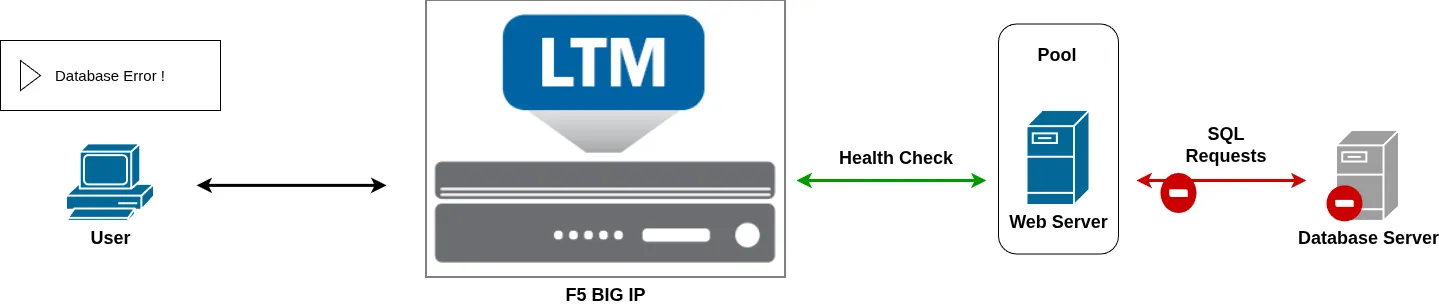
Consider a web server that relies on a database. The web server may continue responding correctly to a basic HTTP monitor even though its database is unavailable.
In this situation, BIG-IP could consider the pool member healthy while the application itself is actually malfunctioning.
We may therefore want the monitor to check the health of the database as well before considering the web server available.
This is where the Alias settings become useful.
Alias Address
Normally, a monitor applied to a pool member checks the address of that pool member.
However, the Alias Address setting allows the monitor to perform its health check against a different IP address.
This means that a monitor can remain associated with a pool member while the actual health check is performed against another server.
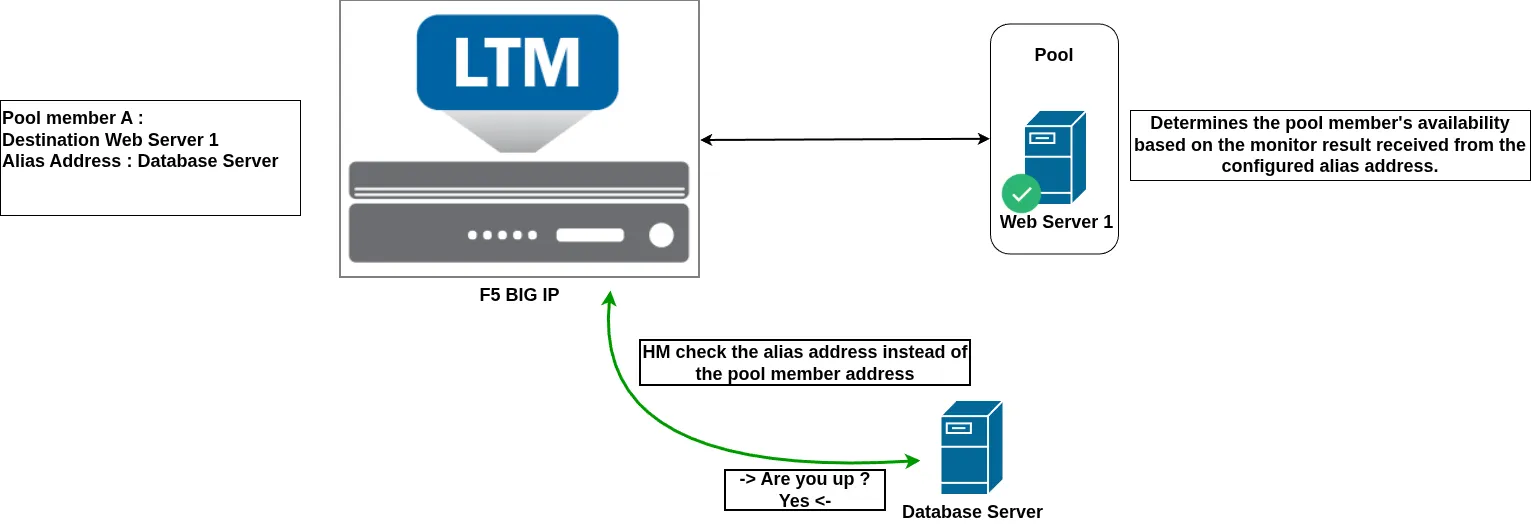
For example, if a web server depends on a database server, we could configure the database server’s IP address as the Alias Address. The monitor would then check the database rather than the web server itself.
Alias Service Port
The Alias Service Port works in a similar way to the Alias Address, but allows you to change the port used for the health check.
Normally, the monitor uses the service port configured on the pool member. However, you may have a web server serving its production application on port 443, while a dedicated health-check endpoint is available on port 8443.
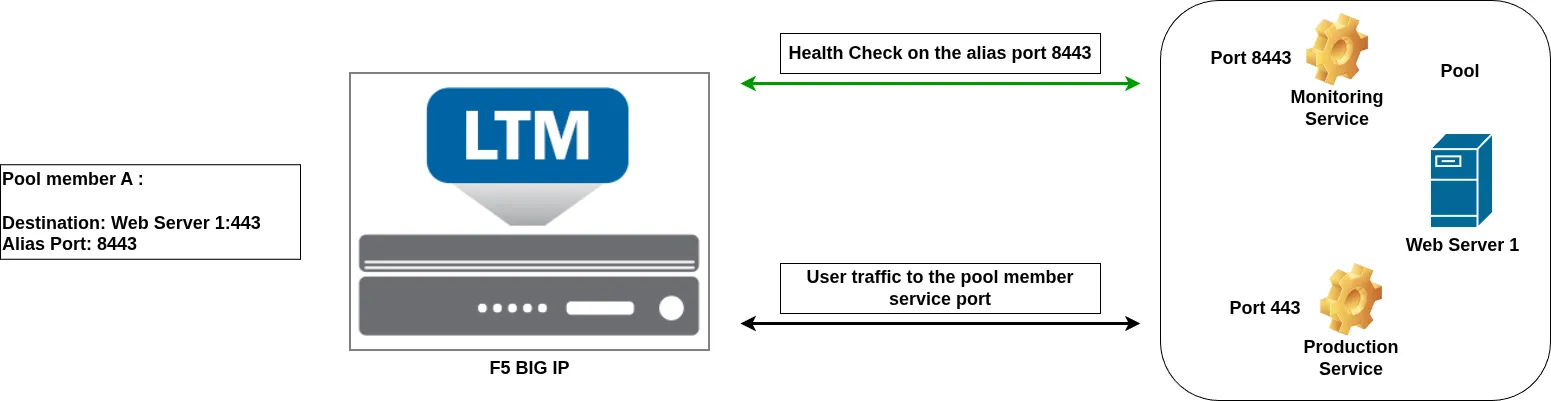
By configuring 8443 as the Alias Service Port, the monitor can check that endpoint while the pool member continues to receive production traffic on port 443.
In summary, the pool member address and service port define where production traffic is sent, while the Alias Address and Alias Service Port can define where the health check is performed.
Checking the Path with a Transparent Monitor
Another interesting scenario is when you want to monitor not only a destination, but the network path used to reach it.
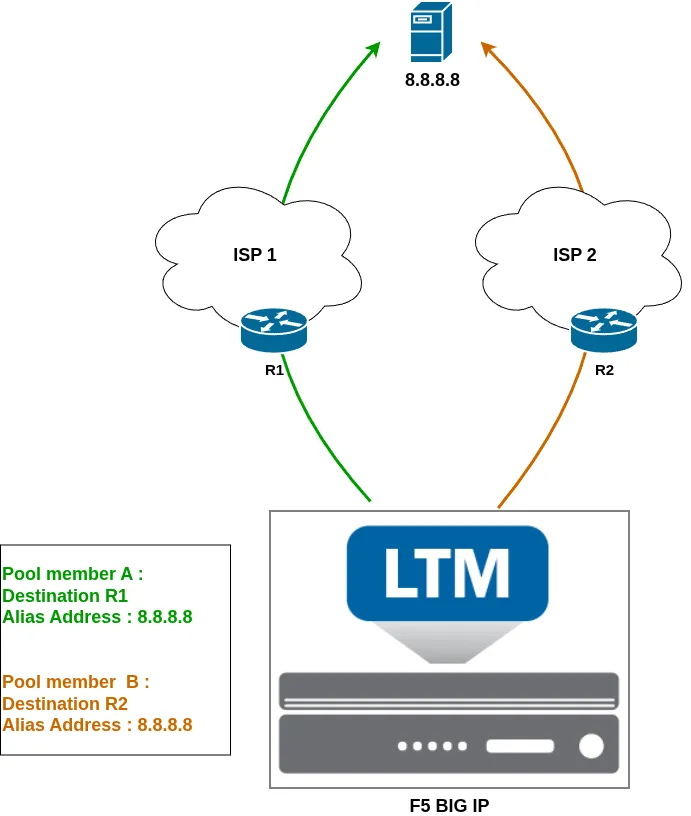
For example, imagine a BIG-IP connected to two different ISPs. You may want to verify that a destination such as Google DNS, 8.8.8.8, is reachable through ISP1 and through ISP2.
In this case, the objective is not simply to verify that 8.8.8.8 is responding. The goal is to verify that the complete network path through each ISP is operational.
To achieve this, an ICMP monitor can be configured with Transparent set to Yes and an Alias Address of 8.8.8.8.
With a transparent monitor, the health-check packet is sent toward the Alias Address, but it is transmitted through the pool member being monitored. This allows BIG-IP to validate the path through the specific interface, VLAN, or network path associated with that pool member.
Reverse Monitor
Another special monitoring scenario is the Reverse monitor.
The concept is straightforward: instead of considering the pool member up when the monitor succeeds, the result is reversed.
A successful monitor therefore causes BIG-IP to consider the pool member unavailable, while a failed monitor causes it to be considered available.
This can be useful in specific scenarios where the desired behavior is the opposite of a traditional health check.
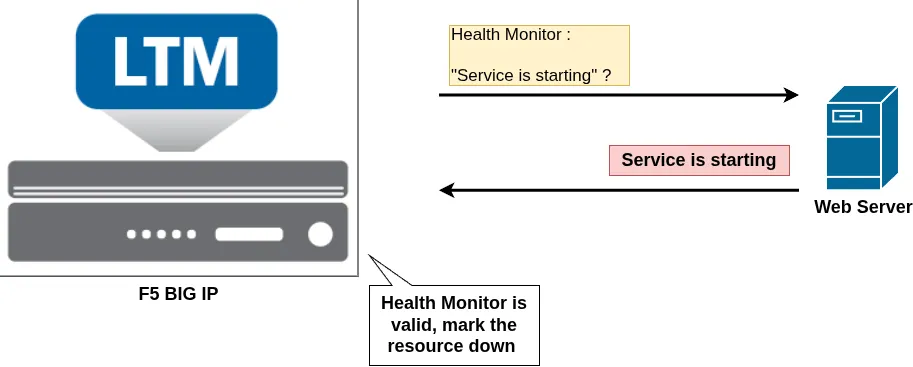 In this example, the server displays a “Service is starting” message, indicating that the service is not yet ready to accept client traffic. You can create a health monitor that checks for this specific response.
By enabling the Reverse option, the monitor result is inverted: as long as the “Service is starting” message is detected, the pool member is marked DOWN. Once the message disappears and the expected response is not found (and thus the monitor is DOWN), the monitor result changes and the pool member can be marked UP.
Manual Resume
The Manual Resume option provides another level of control over how a pool member is returned to service.
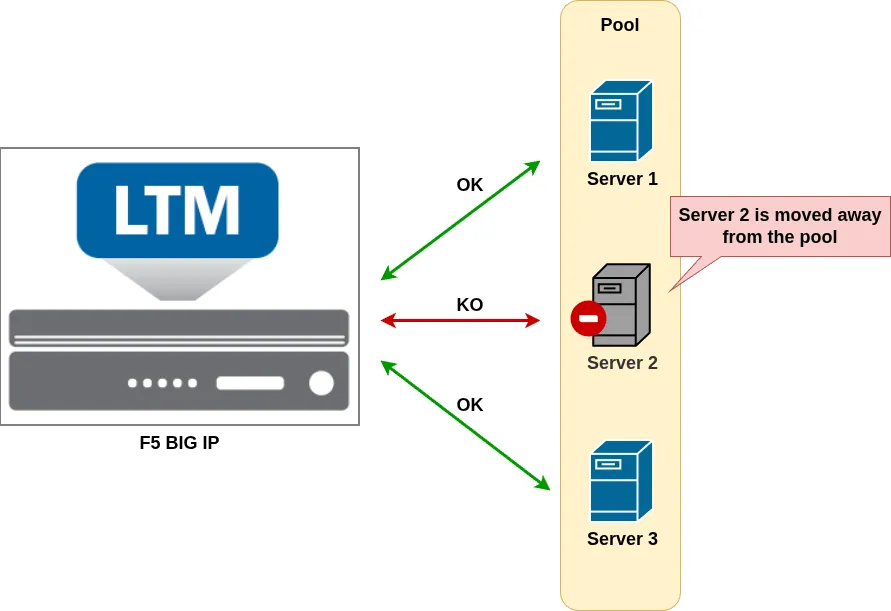
Normally, when a monitor marks a pool member as down, the member is automatically reintegrated into the pool once the monitor starts succeeding again.
With Manual Resume enabled, this does not happen.
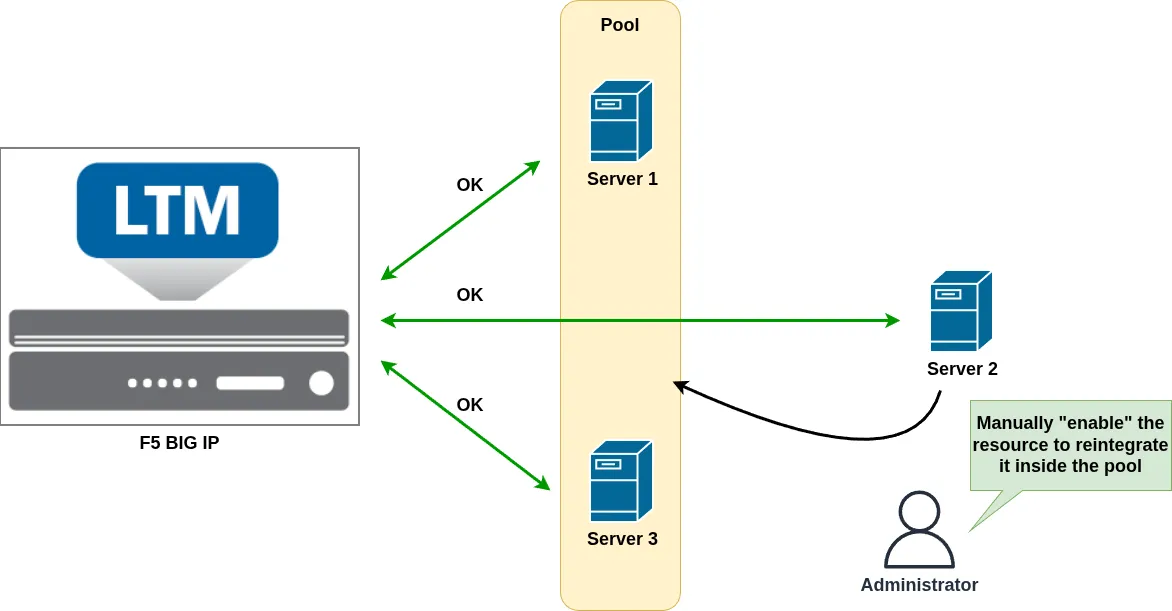
Once the pool member has been marked down, it remains out of service even after the monitor becomes successful. An administrator must manually resume the pool member before it can receive production traffic again.
This can be particularly useful when a server has experienced a serious failure and you want an administrator to inspect it before allowing traffic back to it.
For example, an administrator could investigate the application, database connectivity, system logs, or other potential causes of the failure. Once the server has been confirmed healthy, the administrator can manually enable the pool member and return it to the active pool.
Conclusion
In this course, we explored additional settings that provide greater control over how resources are monitored.
First, we looked at alias addresses and ports, which allow the BIG-IP to monitor a destination different from the address and port configured on the pool member. This can be useful when the availability of an additional service is required before considering the pool member healthy.
We also explored the Transparent monitor, a particular monitor type that can be used to verify network paths. For example, it can be used to determine whether an ISP or another network path is operational. Instead of sending the monitor directly to the pool member’s configured destination, the BIG-IP sends the request through the pool member toward the configured alias destination.
The Reverse setting allows the result of a monitor to be inverted: a successful check marks the resource down, while a failed check marks it up.
Finally, Manual Resume gives the administrator control over when a resource is allowed to return to service. Instead of automatically bringing the resource back into the pool after the first successful monitor response, the BIG-IP waits for the administrator to manually resume the resource.