Exam Topics
- F5CAB2
- F5CAB2.03
- Identify traffic diverted due to status of traffic objects (vs, pool, pool member)
- Identify when connection/rate limits are reached
- F5CAB2.03
Introduction
Backend servers can sometimes become overwhelmed by user traffic, whether due to legitimate usage spikes (such as peak business hours or application growth) or malicious events like denial-of-service (DoS) attacks. Without proper controls, this overload can lead to degraded performance, slow response times, or even service outages.
To help protect backend resources from these situations, F5 BIG-IP LTM provides connection limiting and rate limiting features. These mechanisms allow administrators to control both the number of concurrent connections a server can handle and the rate of new connections it receives.
By properly configuring these limits, you can ensure fair load distribution, maintain optimal server performance, and improve overall application stability even during traffic spikes.
Preventing Server Overload with Rate and Connection Limits
The F5 BIG-IP LTM module provides two important mechanisms to protect backend servers from overload: connection limits and rate limits.
A connection limit restricts the number of concurrent connections that can be established to an object such as a pool member or node. This helps prevent servers from becoming overloaded and experiencing degraded performance.
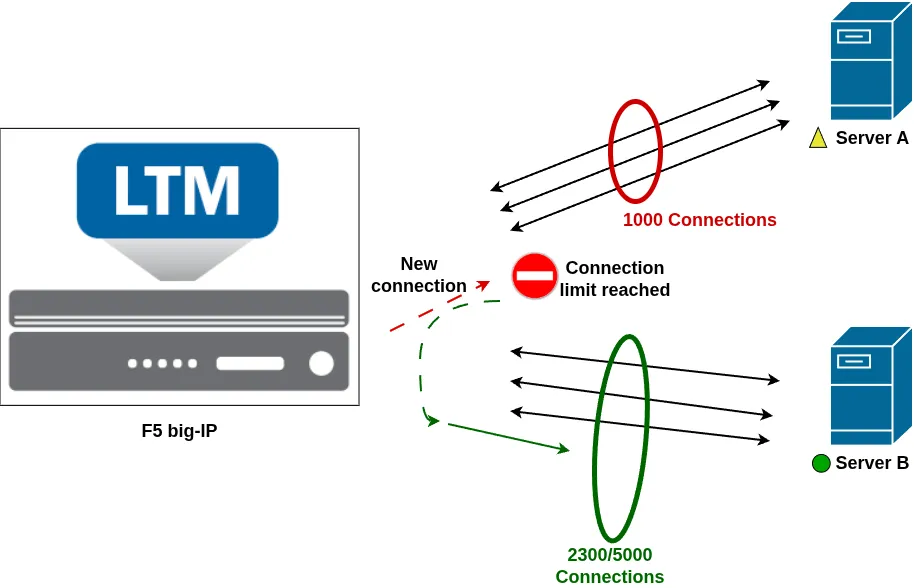
For example, imagine a pool with two servers:
- Server A can handle up to 1,000 concurrent users before performance starts to degrade.
- Server B is more powerful and can handle up to 5,000 concurrent users.
In this scenario, you may want to configure a connection limit of 1,000 connections on Server A and 5,000 connections on Server B to ensure both servers operate within their optimal capacity and maintain service quality.
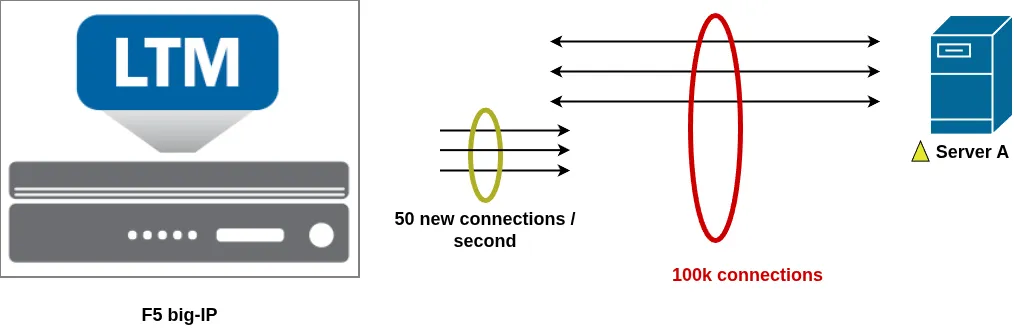
Similarly, some servers may support a large number of concurrent connections but struggle with sudden spikes of new connections. For instance, a server might be able to handle 100,000 concurrent connections, but only sustain 50 new connections per second without performance issues.
In this case, you can configure a rate limit on the pool member. This ensures that the BIG-IP never establishes more new connections per second than the configured threshold, while still allowing a high number of total concurrent connections.
Together, connection limits and rate limits provide effective protection against overload conditions by controlling both the total number of active connections and the speed at which new connections are established.
Connection Limit and Rate Limit Behavior
Connection limits and rate limits can be applied to Virtual Servers, Virtual Addresses, Pool Members, or Nodes. When one of these objects reaches its configured connection or rate threshold, its status changes to Temporarily Unavailable, which is represented by a yellow triangle in the Configuration Utility. This status indicates a temporary condition where new connections are no longer accepted until the usage drops below the configured limit.
When a Virtual Server reaches a configured limit, existing connections continue to operate normally, but new connection attempts are either reset (TCP) or dropped (UDP).
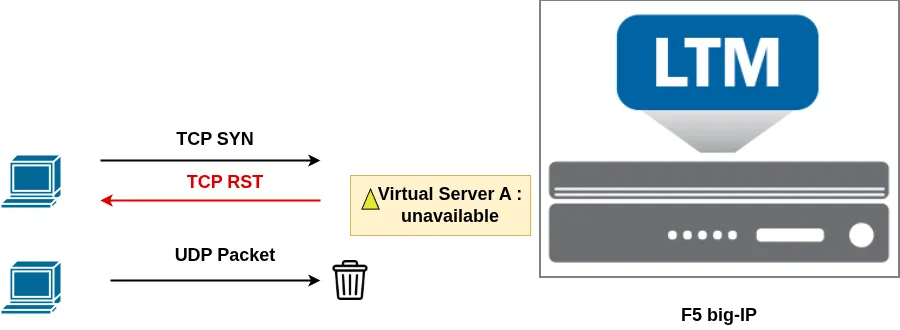
When a Pool Member reaches its limit, new client connections are automatically redirected to other available pool members. If no other pool members are available, the connection will be reset (TCP) or dropped (UDP).
The same behavior applies at the Node level. If a node reaches its configured limit, new connections are redirected to other available nodes through their associated pool members. If no alternative is available, the connection is reset (TCP) or dropped (UDP)
Configuring Connection and Rate Limits in the Configuration Utility
Using the Configuration Utility, you can configure the connection limit for a Virtual Server, Pool Member, or Node by setting the Connection Limit attribute of the object.

By default, this value is set to 0, meaning no limit is applied. Any positive value defines the maximum number of concurrent connections allowed for that object.
To configure a rate limit, use the Connection Rate Limit attribute.

A value of 0 means no rate limit is enforced, while any positive value limits the number of new connections per second that the object can accept.
Rate Limit Options for Virtual Servers
Virtual Servers provide additional flexibility for connection rate limiting. By default, the rate limit applies globally to all new connections to the Virtual Server. However, you can refine this behavior using the Connection Rate Limit Mode setting, which provides several alternative modes:
- Per Virtual Server and Source Address
Applies the rate limit based on the client source IP address. The Connection Rate Limit Source Mask defines how many bits of the source IP are used (for example, to rate limit per host or per subnet). - Per Virtual Server and Destination Address
Applies the rate limit based on the destination IP address using the Connection Rate Limit Destination Mask, allowing limits per destination subnet. - Per Virtual Server, Destination, and Source Address
Applies rate limiting based on a combination of both source and destination addresses, using both masks to define the subnet granularity. - Per Source Address (All Rate-Limiting Virtual Servers)
Applies a shared rate limit per source IP across all Virtual Servers that have rate limiting configured. - Per Destination Address (All Rate-Limiting Virtual Servers)
Applies a shared rate limit per destination IP across all rate-limited Virtual Servers. - Per Source and Destination Address (All Rate-Limiting Virtual Servers)
Applies rate limiting based on the combination of source and destination IP addresses across all configured Virtual Servers.
These options allow you to apply rate limiting in a more granular way. For example, you can limit traffic coming from a specific client or subnet without impacting all users, which is particularly useful when traffic spikes originate from a single source or a limited set of IP addresses.
Configure Limits Using TMSH
Connection and rate limits can also be configured from the command line using TMSH, directly under the context of the relevant object (Virtual Server, Virtual Address, Pool Member, or Node) using the appropriate attributes.
To configure a connection limit, use the connection-limit attribute.
For example, you can verify the connection limit of a Virtual Server using the list ltm virtual command. In the following example, the Virtual Server is limited to 10 concurrent connections:
root@(mybigip)(cfg-sync Standalone)(Active)(/Common)(tmos)# list ltm virtual UnmonitoredVS

ltm virtual UnmonitoredVS {
connection-limit 10
destination 192.168.120.11:http
ip-protocol tcp
mask 255.255.255.255
profiles {
http { }
tcp { }
}
}
In the Configuration Utility, setting the value to 0 disables the connection limit. In TMSH, you can also explicitly disable it with:
modify ltm virtual UnmonitoredVS connection-limit disabled
The exact same logic applies to rate limits, using the rate-limit attribute.
Check if a Resource is Currently Rate or Connection Limited
Using TMSH, you can verify whether a resource is currently being limited by reviewing the Availability field in the status output. For example, for a Virtual Server you can use:
show ltm virtual VSNAME all-properties
Example output:
root@(mybigip)(cfg-sync Standalone)(Active)(/Common)(tmos)# show ltm virtual UnmonitoredVS all-properties

Ltm::Virtual Server: UnmonitoredVS

Status Availability : unavailable
State : enabled
Reason : The virtual server's connection limit has been reached
CMP : enabled
CMP Mode : all-cpus
Destination : 192.168.120.11:80
Here, the Availability shows unavailable, and the Reason clearly indicates that the connection limit has been reached.
This is a quick and reliable way to determine if an object is temporarily unavailable due to configured limits directly from the command line.
Conclusion
In this article, we reviewed how connection limiting and rate limiting can be used to protect backend resources from overload and maintain service stability. These features provide granular control over how traffic is accepted and distributed across your infrastructure.
Key takeaways from this article:
- Connection limits control the number of concurrent connections, while rate limits control how many new connections per second an object can accept.
- These limits can be applied to multiple object types:
- Virtual Servers
- Virtual Addresses
- Pool Members
- Nodes
- When an object reaches a configured limit:
- A Virtual Server will reset new TCP connections and drop UDP packets.
- A Pool Member or Node will redirect new connections to other available members when possible.
- If no alternative resource is available, connections are reset (TCP) or dropped (UDP).
- Limited objects can be quickly identified:
- In the Configuration Utility with a yellow triangle indicating a temporarily unavailable state.
- In TMSH using
showcommands, where the availability and reason fields indicate that a limit has been reached.
Proper use of connection and rate limits is an important best practice to ensure backend stability, maintain performance during traffic spikes, and improve the overall resilience of your applications.