Exam Topics
- F5CAB1
- F5CAB1.04
- Given an HA pair, describe the appropriate strategy for deploying a new software image
- F5CAB1.04
Introduction
Upgrading an F5 BIG-IP system is one of the core maintenance tasks an administrator will regularly perform. Whether to benefit from new features, apply bug fixes, or address security vulnerabilities, keeping the platform up to date is essential for maintaining a secure and stable environment.
To minimize impact on production traffic, organizations commonly deploy F5 BIG-IP systems in a High Availability (HA) pair. This architecture allows maintenance operations, including software updates and upgrades, to be performed with little or no service interruption.
In this article, we will walk through how to safely update and upgrade an F5 BIG-IP HA pair, highlighting best practices, key precautions, and practical steps to reduce operational risk during the process.
What is an HA pair ?
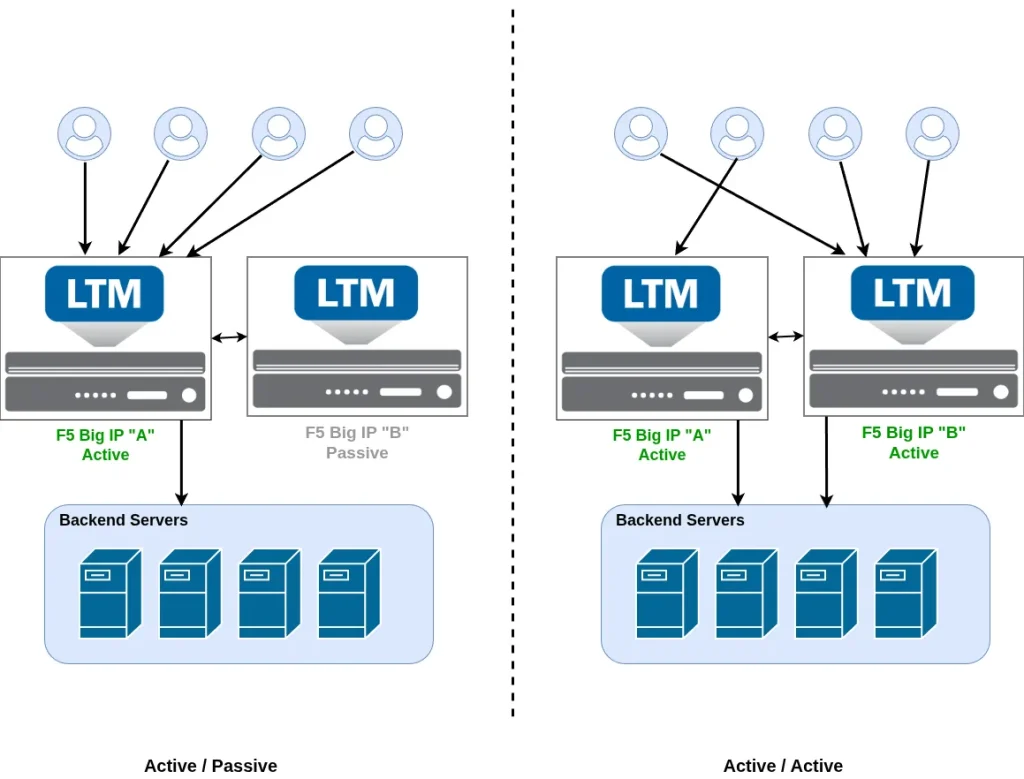
An HA pair consists of two F5 BIG-IP systems configured to work together to provide high availability and service continuity. These systems can be deployed in either an active/active or active/passive architecture. In this article, we focus on the active/passive model, which is the most commonly used for production environments.
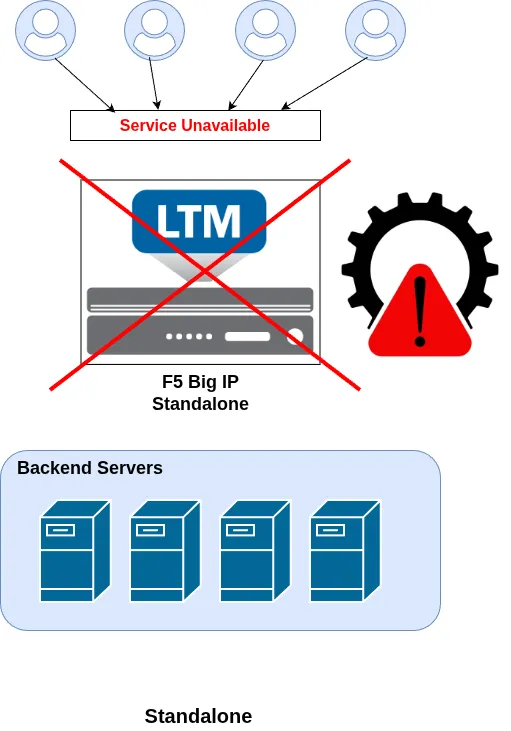
In a standalone F5 BIG-IP deployment, a single device handles all traffic. While simpler, this design introduces a single point of failure. Any hardware issue, software crash, or maintenance operation can directly impact production traffic and lead to service downtime.
With an active/passive HA pair, one BIG-IP is Active and processes all traffic, while the second unit remains Passive, continuously synchronized and ready to take over if the active unit fails or is intentionally taken out of service. This design significantly improves resilience and allows maintenance tasks, such as upgrades, to be performed with minimal or no impact to users.
To form an HA pair, the devices establish device trust, which relies on certificate-based authentication. Once trust is established, failover mechanisms are enabled, allowing the systems to automatically exchange roles when required.
When logged into the F5 BIG-IP Configuration Utility, the current status of the device is visible in the top-left corner of the interface:
-
Standalone or Active status is displayed in green, indicating the device is actively processing traffic.


-
Passive status is shown in gray, indicating that the unit is on standby and should not be handling traffic.

This visual indicator provides a quick and reliable way to confirm the operational role of each device in the HA pair before performing any maintenance or upgrade operation.
Choosing the right version: upgrade vs update
Before upgrading an F5 BIG-IP system, it is important to carefully decide which version to install. F5 uses a clear versioning convention that helps administrators understand the scope and potential impact of a software change.
F5 distinguishes between two types of software changes:
-
Upgrade
An upgrade introduces new capabilities such as additional features, support for new hardware platforms, or performance improvements. Upgrades may also include changes in system behavior, configuration handling, or user interface menus. Because of this, upgrades typically carry a higher risk and require thorough testing and validation. -
Update
An update focuses on bug fixes and security patches. Updates are designed to correct existing issues without changing default behavior or introducing major functional changes. They are generally safer to deploy and require less extensive testing.
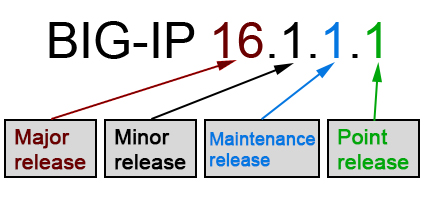
You can determine whether a target version is an upgrade or an update by comparing version numbers:
-
An increase in the first or second number indicates an upgrade (Major and Minor releases)
-
An increase in the last numbers indicates an update (Maintenance and Point releases)
Examples:
-
Moving from 14.1.3 to 15.1.2.1 is an upgrade
-
Moving from 15.1.0.4 to 15.1.2.1 is an update
In practice, the first scenario usually requires extended testing and validation, while the second is typically less disruptive since core behavior remains unchanged.
HA pair upgrade procedure
Upgrade strategy to minimize traffic impact
To minimize the impact on production traffic, the upgrade of an F5 BIG-IP HA pair should follow a sequential upgrade approach.
The procedure is as follows:
-
Upgrade the standby unit first
Begin by upgrading the passive BIG-IP. Since this unit is not processing traffic, the upgrade has no impact on live services. -
Run post-upgrade checks
After the upgrade completes, verify the system health. Check the device status, module availability and configuration integrity. -
Trigger a failover
Initiate a failover so the upgraded unit becomes active and starts processing production traffic. -
Validate applications and traffic flow
Test applications and services to ensure traffic is handled correctly by the upgraded unit. -
Upgrade the second unit
The former active BIG-IP is now passive and still running the previous software version. You can upgrade this unit without impacting traffic. -
Final validation failover (recommended)
As a best practice, perform another failover to confirm both units can independently handle production traffic on the new version.
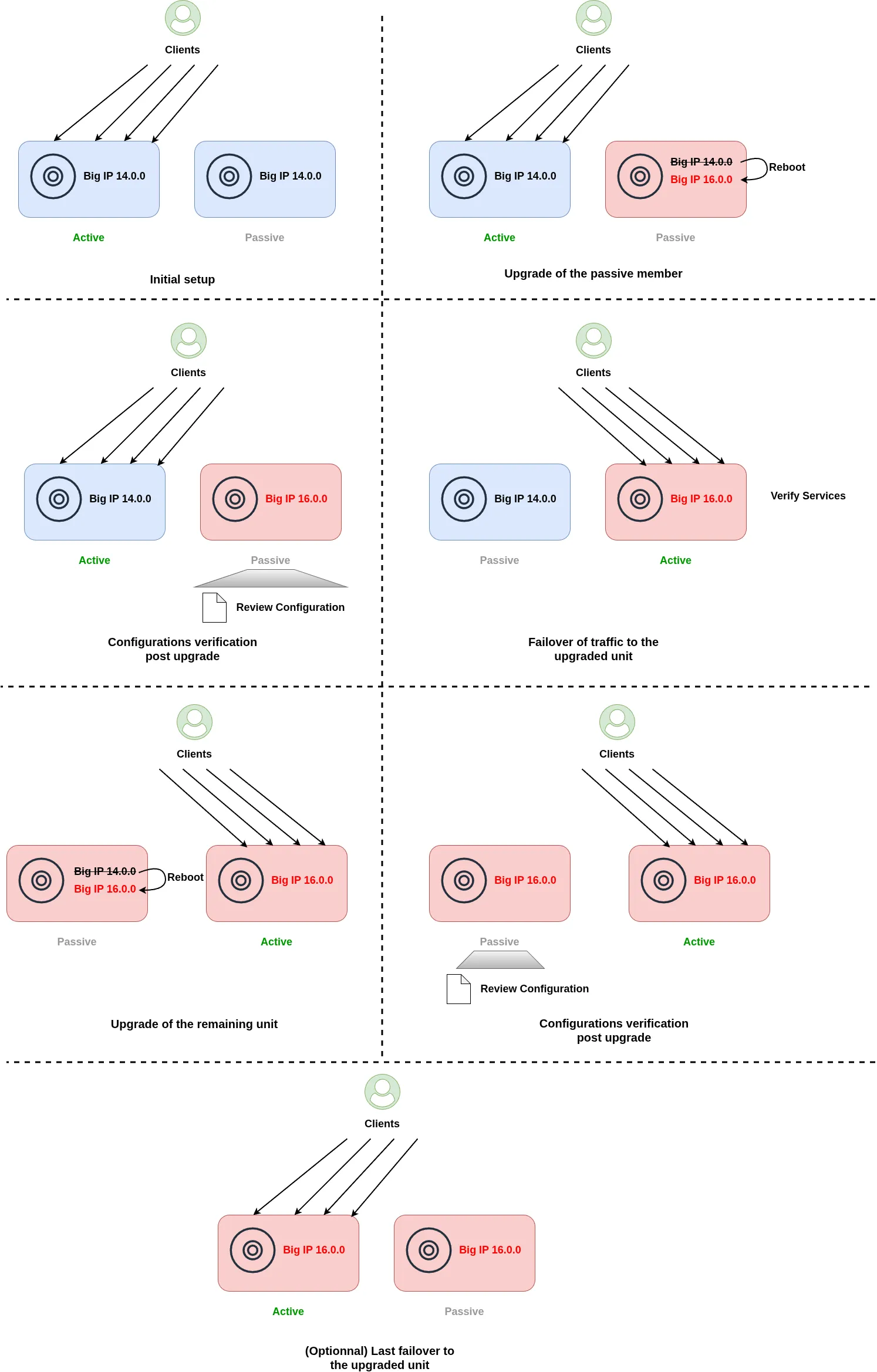
This approach ensures service continuity, allows controlled validation at each stage, and reduces the risk of disruption during the upgrade process.
Upgrade the HA pair using the Configuration Utility (GUI)
Upgrading an F5 BIG-IP HA pair involves carefully updating each unit to minimize traffic disruption. The Configuration Utility provides a step-by-step method to perform this process safely.
Step 1: Prepare the new software image
Preparing a new software image on a volume is explained in greater detail in the Volume and Boot Location course. Here is a quick summary of how to get the new software ready before upgrading.
-
Download the new BIG-IP image from the F5 website. Optionally, download the MD5 signature to verify the integrity of the ISO file.
-
On the standby unit, navigate to System → Software Management and upload the BIG-IP software image.
-
Go to System → Software Management → Image List:
-
Select the uploaded image and click Install.
-
Choose a disk and assign a volume name (either a new volume or an existing one).
-
Click Install to start the process.
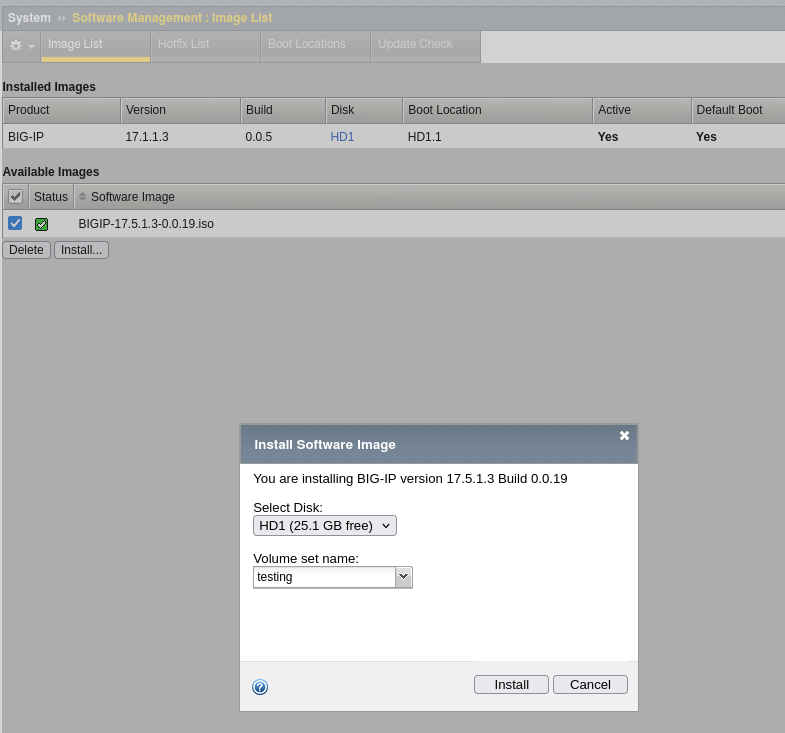
-
-
Monitor the progress under Installed Images → Install Status.

Step 2: Prepare the standby unit
Before rebooting, ensure the standby BIG-IP does not process traffic during the upgrade:
-
Set the standby system offline
-
This ensures it cannot become active accidentally and disrupt traffic. Refer to knowledge article K15122
-
-
Disable Auto Sync
-
Config sync only works when both units run the same software version. During the upgrade, versions differ temporarily, so disabling auto sync prevents sync errors.
-
Step 3: Reboot the standby unit into the new version
-
Go to System → Software Management → Boot Locations.
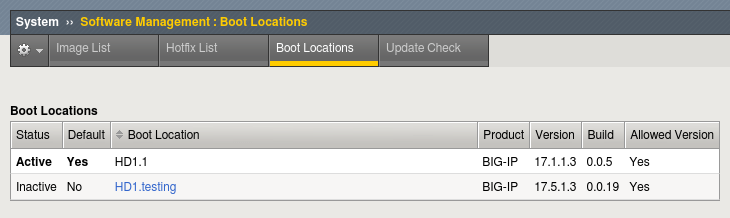
-
Select the boot location of the new software and click Activate.
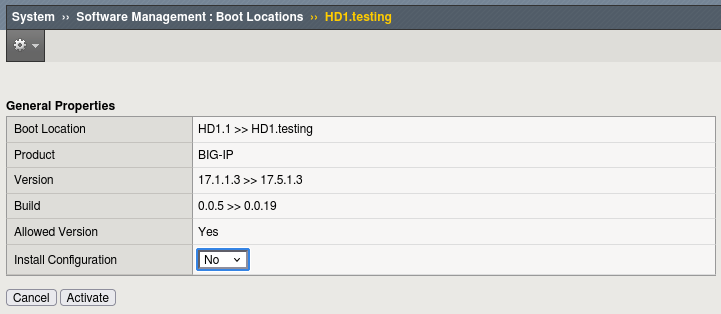
-
Once rebooted, verify the configuration: check virtual servers, pools, and other key elements to ensure the system is operating correctly.
Step 4: Switch traffic to the upgraded unit
-
Release offline the upgraded BIG-IP to allow it to become active.
-
Failover traffic from the currently active unit to the upgraded standby:
-
This step directs traffic to the new software version.
-
A brief interruption may occur due to ARP updates and session failover.
-
To reduce impact, consider using MAC masquerading and connection mirroring.
- On the active memeber, navigate to Device Management → Devices and select Force to Standby.
-
-
Verify that services are fully operational on the newly active unit.
Step 5: Upgrade the second unit
Once the first unit is upgraded and active, repeat the process for the second (formerly active) unit:
-
Prepare the volume with the new software.
-
Set the system offline.
-
Reboot to the new version.
-
Verify configuration and services.
-
Release offline and optionally failover traffic to test.
-
Confirm services are running correctly.
-
Re-enable Auto Sync to resume normal configuration synchronization.
Upgrade the HA pair using tmsh (cli)
Upgrading BIG-IP software can also be performed using tmsh from the command line. This approach is especially useful when the Configuration Utility is unavailable or unresponsive. In most failure scenarios, SSH or console access remains available, making CLI-based upgrades an essential skill for administrators.
The overall workflow is similar to the Configuration Utility method. The main difference is that all actions are performed using commands instead of the web interface.
Step 1 : Prepare the new software image
Software images must be stored in the /shared/images/ directory. This is where BIG-IP looks for available images during installation.
You can upload the ISO using an SCP tool such as WinSCP. From a Linux system, use the following command:
scp BIGIP-16.0.0-0.0.12.iso root@10.154.210.137:/shared/images/
Once uploaded, list the available software images using tmsh:
tmsh list sys software image
Example output:
sys software image BIGIP-14.1.0-0.0.116.iso {
build 0.0.116
build-date "Wed Nov 14 18:41:56 PST 2018"
checksum acb4537e37557ada7f60267d5f946387
file-size "2238 MB"
last-modified "Tue Sep 8 08:36:50 2020"
product BIG-IP
verified yes
version 14.1.0
}
sys software image BIGIP-16.0.0-0.0.12.iso {
build 0.0.12
build-date "Tue Jun 23 18:31:26 PDT 2020"
checksum 7d0fe1341f74567946d0e196456b9fa0
file-size "2322 MB"
last-modified "Tue Sep 8 08:37:58 2020"
product BIG-IP
verified yes
version 16.0.0
}
In this example, BIG-IP versions 14.1.0 and 16.0.0 are available for installation.
To install a new image, use the following command syntax:
tmsh install sys software image <ISO_NAME> volume <VOLUME_NAME> create-volume
Example:
tmsh install sys software image BIGIP-16.0.0-0.0.12.iso volume HD1.2 create-volume
This command creates a new volume named HD1.2 running BIG-IP version 16.0.0.
You can monitor the installation progress using:
tmsh show sys software status
Example output:
----------------------------------------------------------------
Sys::Software Status
Volume Product Version Build Active Status
----------------------------------------------------------------
HD1.1 BIG-IP 14.1.0 0.0.116 yes complete
HD1.2 BIG-IP 16.0.0 0.0.12 no installing 10.000 pct
Once the status shows complete, the new volume is ready.
Step 2: Prepare the standby unit
As with the Configuration Utility workflow, some precautions should be taken before rebooting into the new software version. First, set the standby system to Offline to ensure it cannot accidentally become active during the reboot process. This can be done using the following command:
tmsh run sys failover offline
Next, disable auto-sync if it is enabled. Configuration synchronization only works when both devices run the same BIG-IP version, and leaving auto-sync enabled during an upgrade can lead to unnecessary sync errors. Disable auto-sync with the following commands:
tmsh modify /cm device-group <device-group-name> save-on-auto-sync false
tmsh save /sys config
Once these steps are completed, the system is ready to be rebooted into the new software volume.
Step 3: Reboot the standby unit into the new version
Start by listing the available volumes and their status:
tmsh show sys software status

---------------------------------------------------
Sys::Software Status
Volume Product Version Build Active Status
---------------------------------------------------
HD1.1 BIG-IP 14.1.0 0.0.116 yes complete
HD1.2 BIG-IP 16.0.0 0.0.12 no complete
In this example, the currently active volume is HD1.1, and the new software version is installed on HD1.2.
To reboot the system into the new volume, use the following command:
tmsh reboot volume HD1.2
The system will reboot immediately and start using the selected boot location.
After the reboot, verify that the system is running the expected version by checking the software status again:
tmsh show sys software status

---------------------------------------------------
Sys::Software Status
Volume Product Version Build Active Status
---------------------------------------------------
HD1.1 BIG-IP 14.1.0 0.0.116 no complete
HD1.2 BIG-IP 16.0.0 0.0.12 yes complete
Notice that the active volume is now HD1.2.
Step 4: Switch traffic to the upgraded unit
Now that the standby unit is running the new software version and has been fully validated, you can allow it to process traffic and make it the active device.
Start by releasing the Offline state on the upgraded unit so it can participate in failover and accept traffic:
tmsh run /sys failover online
Next, on the currently active unit (still running the old software version), force it into Standby state:
tmsh run sys failover standby
At this point, traffic will shift to the newly upgraded unit, which becomes Active.
Step 5: Upgrade the second unit
Traffic is now flowing through the newly upgraded unit.
You can repeat the same procedure on the remaining device to complete the upgrade of the HA pair.
Troubleshooting and Best Practices
In most cases, upgrading an F5 BIG-IP system works smoothly and does not impact production traffic, since the procedure always starts with the passive unit. However, the following tips and best practices can help you avoid common issues and recover quickly if something goes wrong.
System remains in Inoperative mode after upgrade
If, after rebooting into the new version, the unit stays in Inoperative mode, this usually indicates a configuration or license issue.
Connect to the CLI and attempt to manually load the configuration:
Configurations issues
If an error exists, the system will display detailed messages explaining why the configuration cannot be loaded. These messages are often related to deprecated features, incompatible objects, or syntax changes between versions.
License issues
You must have a valid license to run an F5 BIG-IP system. Before upgrading, always verify the Service Check Date.
If the Service Check Date is earlier than the License Check Date of the target BIG-IP version, the system will boot, but the configuration will not load.
Create backup and qkview
Before starting any upgrade, it is strongly recommended to:
-
Create a UCS archive
This provides a full system backup and allows a quick rollback if needed. -
Generate a qkview file
A qkview can be uploaded to iHealth to detect potential issues or incompatibilities before the upgrade. It is also extremely useful when working with F5 Support if problems occur after the upgrade.
Taking another qkview after the upgrade helps validate system health and provides a reference point for troubleshooting.
Following these best practices ensures a safer upgrade process and significantly reduces recovery time if unexpected behavior occurs.
Conclusion
Upgrading an F5 BIG-IP system does not have to be risky or disruptive when done correctly. By leveraging an HA pair, administrators can significantly reduce the impact of upgrades and avoid unexpected downtime.
The key advantage of an HA architecture is the ability to upgrade the standby unit first, validate the new software version, and validate the configuration before moving production traffic. Once confidence is gained, a controlled failover allows traffic to shift with minimal interruption, and in many cases, no visible impact at all. The second unit can then be upgraded using the same safe process.
In addition, the F5 volume (boot location) system provides a powerful safety net. Because each software version is installed on its own volume, recovery is fast and simple. If an issue is detected after an upgrade, the system can quickly be rebooted on a previous, known-working volume, restoring service without complex rollback procedures.
This approach stands in sharp contrast to upgrading a standalone BIG-IP, where any issue during the upgrade immediately affects production traffic and recovery options are far more limited.
To summarize:
-
Always upgrade the standby unit first
-
Validate the new version before shifting traffic
-
Use failover to move traffic with minimal disruption
-
Upgrade the second unit only after the new version is proven stable
-
Use volumes to quickly roll back to a previous working software version
-
Prefer HA deployments over standalone systems for safer maintenance
By combining HA failover with the BIG-IP volume system, upgrades become a controlled, low-risk maintenance operation rather than a source of uncertainty.